Partner Portal help PREVIEW
For the customers, vendors and employees of a company that uses RedSmart Accounting.
The Partner Portal is a private page where you see your own documents from a company you work with: invoices, bills, paystubs and messages. It carries that company's name, logo and colors. Under the company's name you'll see Customer portal, Vendor portal or Employee portal, so you always know which side you are signed in as. You only ever see your own documents.
This page covers what works the same for everyone. Then read the page for your side:
- For customers: invoices, paying online, estimates, payments and your account statement.
- For vendors: sending bills, following them to payment, the payments sent to you, your W-9 and your 1099.
- For employees: paystubs, your W-4, your Social Security number and your W-2.
Signing in
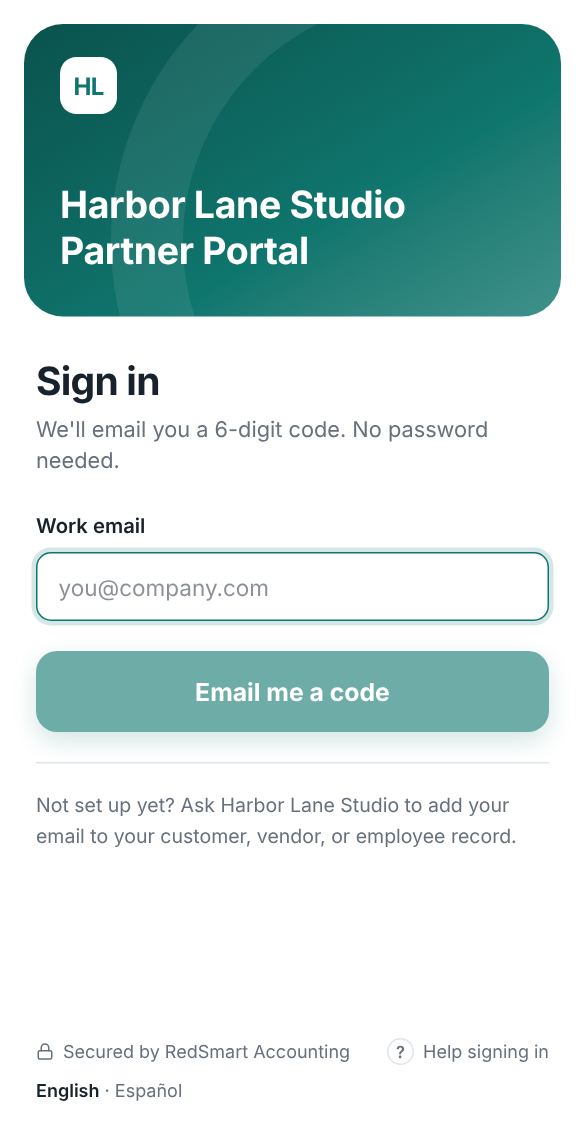
The company gives you its portal link. There is no password; you sign in with a code sent to your email:
- Type your email address and select Email me a code. If a "verify you are human" check is shown, complete it first.
- Open the email and find the 6-digit code. It works for 10 minutes, and only once.
- Type or paste the code into the six boxes. On a phone, the keyboard can often fill it in from the email. It is checked as soon as all six digits are in.
- If your email belongs to more than one account with the company (for example you are both a customer and a vendor), choose the one to open. Do this within five minutes, or select Start over.
No code yet? Wait a minute, then select Resend code, and check your spam folder. Typed the wrong email? Select Use another email.
If you can't sign in
- No code arrives. The portal only sends codes to emails the company has on file, and it answers the same way either way to keep your account private. Ask the company to add your email to your customer, vendor or employee record. Several people from one business can each get access with their own email.
- "That code didn't work." Check the digits, or ask for a new code. A code stops working after 10 minutes or after 5 wrong tries.
- "Too many tries. Wait a while, then try again." There is a limit on codes per hour. Wait, then try again.
- "That took too long." Select Start over and ask for a new code.
You are signed out after 8 hours without using the portal, and 24 hours after signing in. Just sign in again. On a shared computer, use Sign out when you are done.
Getting around
On a computer, the menu is on the left: the company, your name and email, then the pages you can open. At the bottom are Hide private info, Sign out and the language switch. On a phone, the main pages are in a bar at the bottom of the screen, and the company's name, the eye button (hide private info) and sign out are at the top. Pages that don't fit in the bottom bar, such as Estimates, Agreements or Requests, are reached from Home.
The number next to Messages counts replies you haven't read yet.
English and Spanish
The portal follows your device's language, English or Spanish. To change it, choose English · Español on the sign-in page, at the bottom of the menu, or under Profile › Account. Every portal page and the code email follow your choice, and the device remembers it. Invoice and statement PDFs keep the language the company set for your account.
Hide private info
Need to show your screen to someone without showing your numbers? Select Hide private info at the bottom of the menu (on a phone, the eye button at the top). Amounts, email addresses, form fields and charts are blurred. It stays on as you move between pages, and on that device the next time you sign in, until you select Show private info. Printouts and downloaded PDFs are never blurred.
Messages
Messages holds your conversations with the company. A customer has one conversation per invoice or estimate, a vendor one per bill, and both have a General conversation for anything else (New message). An employee has one conversation, with Payroll.
- Choose a conversation on the left to read it and reply. Unread shows only the ones with new replies.
- Press Enter to send, or Shift+Enter for a new line. A message can be up to 5,000 characters.
- An open conversation checks for new replies every few seconds, so you don't need to refresh.
- You can also write about one document from its own page: the message box on an invoice or estimate, or Message us about this bill on a vendor's bill.
Your messages are signed with your name, and the company's replies show who on their team wrote them.
Profile
Profile is where you keep your details current. Customers and vendors can change the contact person, phone, address and tax ID; changes save straight to the company's records. Only the last four characters of the tax ID are shown; type a new one to replace it, or leave the box empty to keep it. A vendor who has sent a W-9 or gets 1099s changes their tax ID with a new W-9 instead. Customers also see their payment terms, read-only; to change them, send a message. Employees, see Profile for employees.
Account at the bottom shows the email you signed in with and the portal language.