← Partner Portal help · Leer en español
For customers PREVIEW
How to see and pay what you owe a company, and keep track of it, in their Partner Portal.
New to the portal? Start with signing in. Your menu has Home, Invoices, Payments, Messages and Profile, plus Estimates, Agreements or Requests when the company uses them.
Home
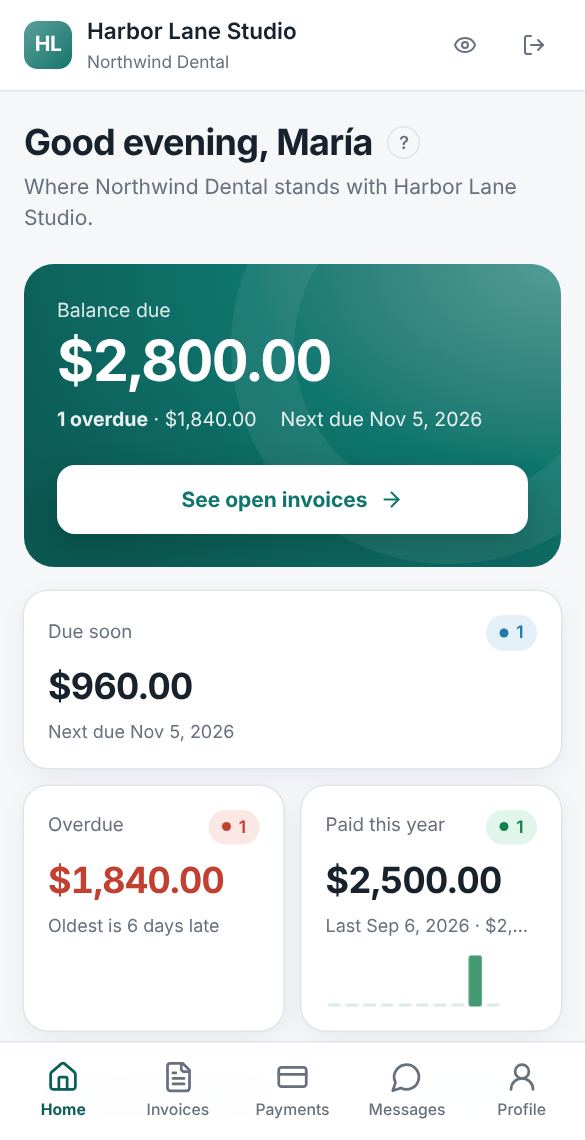
Home greets you by your first name and shows where your account stands:
- Balance due: everything you owe now, how much of it is overdue, and the next due date. When the company takes online payment, Pay open invoices takes you to them. If you owe in more than one currency, the other balances are listed under it.
- Due soon, Overdue and Paid this year, each with a count, the oldest late invoice and your last payment.
- Needs your attention: your open invoices, the most urgent first, each with Pay or View.
- Recent activity: new invoices and payments received.
Banners at the top lead to estimates waiting for your answer, your signed agreements, and Send a request, when there are any. On a phone, that is how you reach those pages.
If the company takes appointments, Book an appointment opens its booking page.
Invoices
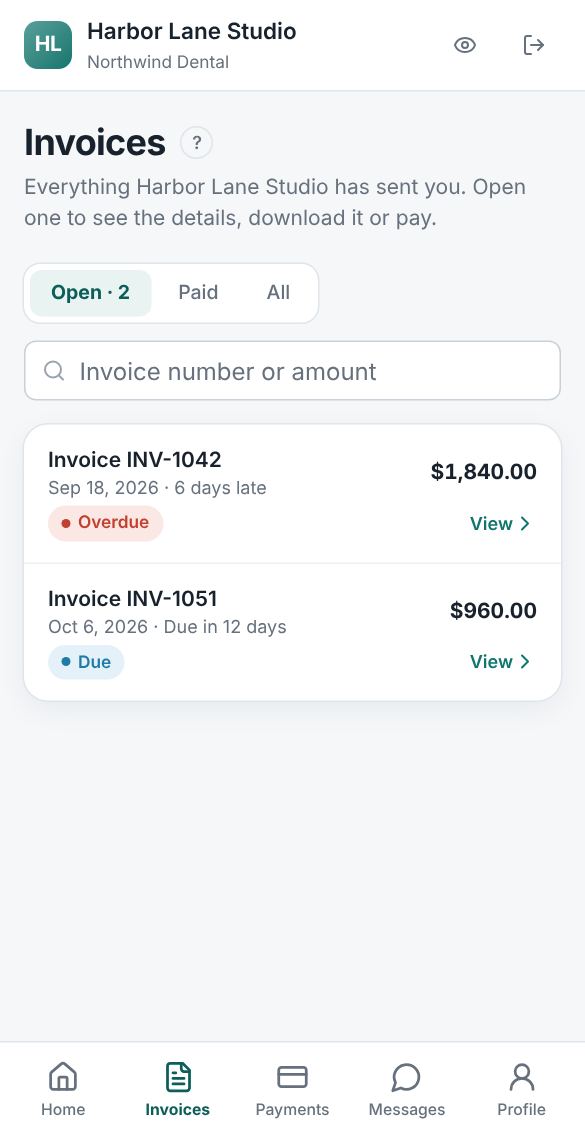
Invoices lists everything the company has sent you. The tabs show Open (still to pay), Paid or All, and the search box finds an invoice by its number or amount. Each invoice shows its dates, the amount due and a status: Due, Overdue, Paid or Cancelled (nothing is owed). Drafts the company is still preparing never appear.
Open an invoice to see it as a document with its lines, tax and total, what has been paid and the balance due. On an invoice for a project shared with you where you see time, a line that bills that time has a short link that opens a window with the project number and name and the published entries on it; select an entry to see it on the project's Time tab. Beside it are:
- Timeline: when it was issued, when you first viewed it, each payment received and, if it is late, when the due date passed.
- Download PDF: the invoice exactly as printed.
- Messages: questions about this invoice go straight to the company. See Messages.
Paying an invoice online
When the company takes online payment, an open invoice shows Pay with the amount due:
- Select Pay. You go to Stripe's secure payment page; the money goes to the company.
- Choose Card or US bank (ACH) and complete the payment.
- A thank-you page confirms the payment went through. A card payment can take a minute to show as paid in the portal.
Some companies add a surcharge to credit card payments. The payment page says so before you pay. Paying by bank has no surcharge, and a debit or prepaid card gets the surcharge back automatically.
A bank (ACH) payment takes a few business days to clear. Until then, the invoice says your payment is on its way, and the company sees it once it clears.
Paying part of an invoice. When the company allows it, Pay a different amount appears under Pay. Open it, type what you want to pay now (at least 1.00, and no more than the amount due), and select Pay this amount; you pay on the same Stripe page. The invoice then shows what you paid and the balance left, and Pay asks only for that balance. If you don't see Pay a different amount, pay the part another way (bank transfer, check) and tell the company in the invoice's message box which invoice and how much; once they record it, the invoice shows it the same way.
If an invoice says online payment isn't available, the company hasn't turned it on. Write to them in the invoice's message box to arrange payment. Payments made another way (check, transfer) appear once the company records them.
Estimates
When the company sends you quotes, Estimates lists them. Waiting shows the ones that need your answer; All shows every one. Each has the date it was issued, the date it's valid until, how many days are left, the amount and a status: Waiting for you, Expired, Accepted, Declined or Invoiced.
Open an estimate to review it. While it is waiting and still valid, answer it under Your answer:
- Accept: type your full name, which counts as your signature, then Accept estimate. The company will be in touch about next steps.
- Decline: optionally tell the company why, then Decline estimate.
Each estimate takes one answer. Changed your mind, or an estimate expired? Write in its message box. Once an accepted estimate becomes an invoice, View the invoice takes you to it.
Payments and your account statement
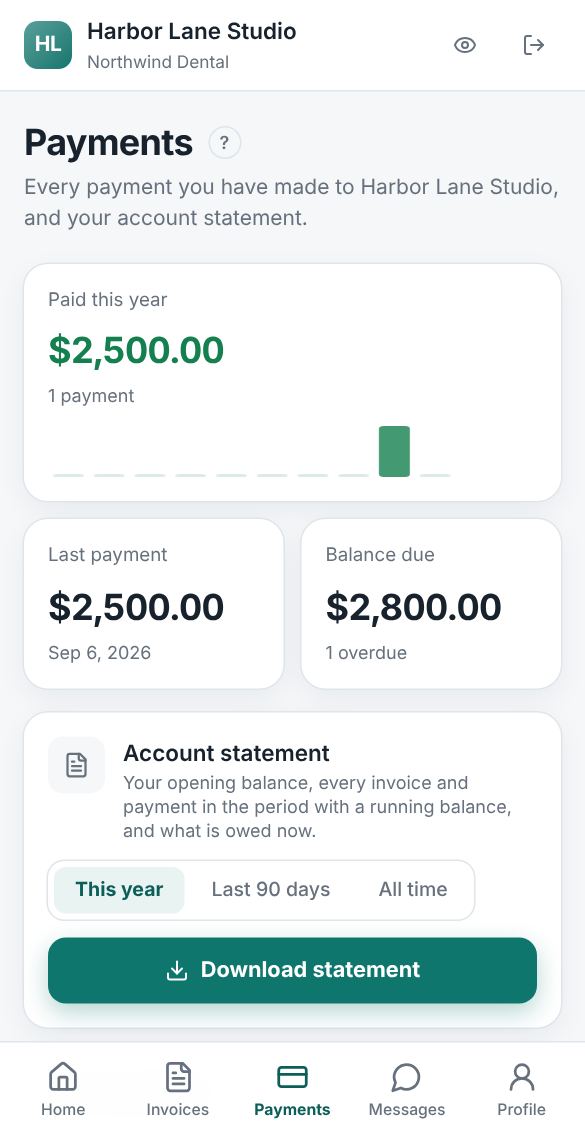
Payments lists every payment you have made, grouped by month, with the method and the invoice it was for. At the top are what you paid this year, your last payment and your balance due.
Under Account statement, choose This year, Last 90 days or All time, then Download statement. The PDF shows your opening balance, each invoice and payment with a running balance, what you owe now, and how old any unpaid amount is.
Projects
When the company shares a project with you, Projects appears in the menu (on a phone, use the link on Home). Each project shows its status and, if it has a budget, how much of it the published time has used.
Open a project for its Overview: published time, charges so far, the agreed budget or fee, and what is left. If the company lets you see time, the Time tab lists every entry it has published, with the date, who did it, the service, the work done, the hours, the rate and the charge, and a total. An entry the company corrected says which version it is. Only time the company has finished and published shows, so newer work may not be there yet. On the Time tab, mark each entry Reviewed once it looks right, or select Ask a question and write what you would like explained or changed; your question also reaches the company in Messages. Use the To review, Questions, Reviewed and All tabs to find entries. If the company corrects an entry and publishes it again, it comes back to To review. Some companies invoice time only after you mark it Reviewed; the Time tab says so when that applies. Time that is on an invoice says Billed on and the invoice number; select it to open the invoice at that line. Time billed before invoices were linked to time says Billed, and time the company doesn't charge for says No charge.
Agreements
When the company shares a signed contract with you, Agreements appears in the menu (on a phone, use the link on Home). It lists each contract's number, title, kind, status, signed date and start and end dates. Select Download signed copy to keep it for your records. The page is read-only; for changes, send a message.
Requests
When the company takes requests through the portal, Requests appears in the menu, and Send a request on Home. To send one:
- Select New request and choose what you need: a New contract, a Work order under an agreement you already have, or a New project.
- Add a short title and the details. Start and end dates and a budget are optional.
- Attach up to 3 PDF or Word files, 10 MB each, if you have them. Every file is checked for viruses; if one is refused, nothing is sent.
- Select Send request. It gets a number such as
RQ-0004.
The Requests page shows each request's status: Waiting for an answer, Accepted, Declined (with the company's reason) or Withdrawn. You can withdraw a request while it waits. Nothing is agreed until the company accepts it.
Profile
Keep your contact person, phone, address and tax ID current in Profile; the address is printed on your invoices. Your payment terms are shown read-only. More in Profile.